
Introduction: The Excel Lookup Function Revolution
If you’ve ever worked with Excel spreadsheets, you’ve likely encountered situations where you need to search for specific data across large datasets. For decades, VLOOKUP has been the go-to function for millions of Excel users worldwide. However, Microsoft introduced XLOOKUP in 2019, promising to revolutionize how we handle data lookups in Excel.
In this comprehensive guide, we’ll dive deep into the VLOOKUP vs XLOOKUP debate, exploring every aspect of these powerful Excel functions. Whether you’re a data analyst, accountant, business professional, or Excel enthusiast, understanding the differences between these functions will significantly enhance your productivity and data management capabilities.
By the end of this article, you’ll have a crystal-clear understanding of when to use each function, their strengths and limitations, and practical examples that you can apply immediately to your work.
Understanding VLOOKUP: The Classic Lookup Function
What is VLOOKUP?
VLOOKUP, which stands for “Vertical Lookup,” is one of Excel’s most popular and widely-used functions. It searches for a specific value in the leftmost column of a table or range and returns a corresponding value from another column in the same row. Think of it as Excel’s way of connecting related information across different columns, similar to how you might manually scan a phone directory to find someone’s number.
VLOOKUP Syntax and Basic Structure
The VLOOKUP function follows this syntax:
=VLOOKUP(lookup_value, table_array, col_index_num, [range_lookup])Let’s break down each parameter:
- lookup_value: The value you want to search for
- table_array: The range of cells containing your data
- col_index_num: The column number from which to retrieve the result
- range_lookup: TRUE for approximate match or FALSE for exact match
Key Features of VLOOKUP
VLOOKUP has served Excel users faithfully for years with these essential features:
- Vertical searching capability: Searches data arranged in columns
- Simple syntax: Easy to understand and implement for beginners
- Widespread compatibility: Works in all Excel versions since Excel 2003
- Approximate matching: Can find closest matches for numerical data
- Integration with other functions: Combines well with IF, IFERROR, and other Excel functions
Common VLOOKUP Use Cases
VLOOKUP shines in numerous business scenarios:
- Employee databases: Looking up employee information based on ID numbers
- Inventory management: Finding product details using SKU codes
- Financial reporting: Retrieving account balances or transaction details
- Customer relationship management: Accessing customer information from large datasets
- Academic records: Finding student grades based on student IDs
Understanding XLOOKUP: The Modern Alternative
What is XLOOKUP?
XLOOKUP represents Microsoft’s answer to the limitations of VLOOKUP. Introduced in Microsoft 365 and Excel 2021, XLOOKUP is a more flexible and powerful lookup function that searches a range or array and returns a corresponding item from a second range or array. It’s designed to be more intuitive, versatile, and error-resistant than its predecessor.
XLOOKUP Syntax and Structure
The XLOOKUP function uses this syntax:
=XLOOKUP(lookup_value, lookup_array, return_array, [if_not_found], [match_mode], [search_mode])
Here’s what each parameter means:
- lookup_value: The value to search for
- lookup_array: The array or range to search
- return_array: The array or range to return
- if_not_found: Optional value to return if no match is found
- match_mode: Optional parameter for exact match, exact or next smaller/larger item
- search_mode: Optional parameter for search direction (first-to-last or last-to-first)
Revolutionary Features of XLOOKUP
XLOOKUP introduces game-changing capabilities:
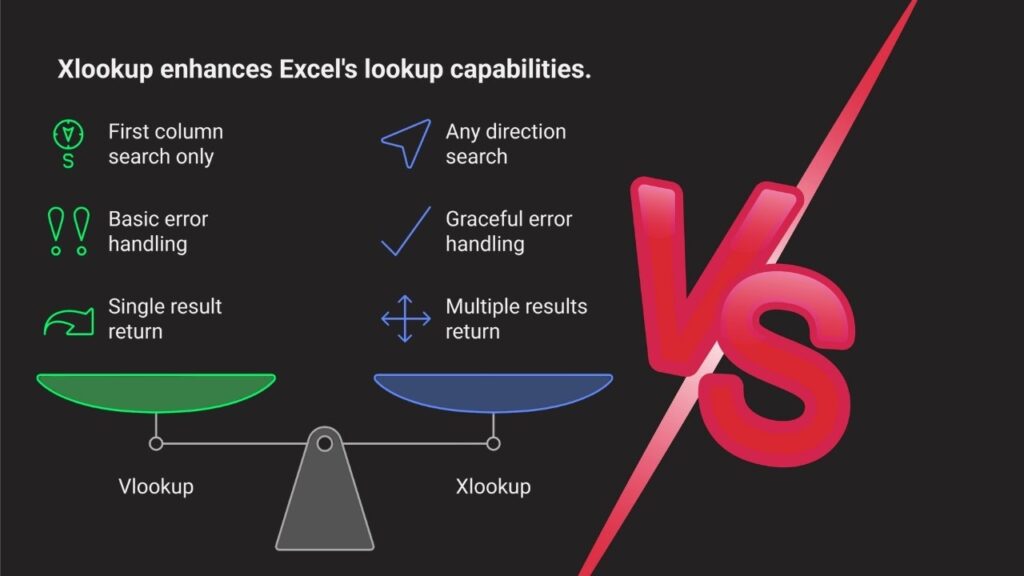
- Bidirectional lookup: Can look left, right, up, or down
- Built-in error handling: Returns custom messages when no match is found
- Dynamic arrays support: Works seamlessly with Excel’s dynamic array formulas
- Multiple criteria lookup: Can handle complex search conditions
- Simplified column references: No need to count column positions
- Exact match by default: Reduces errors from incorrect range_lookup settings
XLOOKUP Applications in Modern Excel
XLOOKUP excels in contemporary data analysis tasks:
- Complex database queries: Handling multi-dimensional data searches
- Dynamic reporting: Creating flexible reports that adapt to changing data
- Data validation: Implementing sophisticated validation rules
- Cross-referencing datasets: Merging information from multiple sources
- Time-series analysis: Looking up values based on dates and timestamps
Head-to-Head Comparison: VLOOKUP vs XLOOKUP
Performance and Speed Analysis
When comparing VLOOKUP and XLOOKUP performance, several factors come into play:
Processing Speed:
- VLOOKUP typically performs faster on smaller datasets (under 10,000 rows)
- XLOOKUP shows superior performance on larger datasets due to optimized algorithms
- Both functions slow down with volatile formulas and complex nested structures
Memory Usage:
- VLOOKUP uses less memory in simple lookups
- XLOOKUP’s additional features require slightly more memory
- The difference becomes negligible in modern computers with adequate RAM
Calculation Efficiency:
- XLOOKUP’s exact match default prevents unnecessary calculations
- VLOOKUP with FALSE parameter matches XLOOKUP’s efficiency
- Approximate matches perform similarly in both functions
Flexibility and Functionality Comparison
The flexibility gap between these functions is substantial:
Lookup Direction:
- VLOOKUP: Only searches left to right
- XLOOKUP: Searches in any direction (left, right, up, down)
Column Management:
- VLOOKUP: Requires counting columns manually
- XLOOKUP: Uses direct array references
Error Handling:
- VLOOKUP: Requires IFERROR wrapper for error management
- XLOOKUP: Built-in if_not_found parameter
Default Behavior:
- VLOOKUP: Defaults to approximate match (potentially dangerous)
- XLOOKUP: Defaults to exact match (safer)
Syntax Complexity and Learning Curve
Understanding the learning requirements for each function:
VLOOKUP Learning Curve:
- Easier for absolute beginners
- Familiar to long-time Excel users
- Simpler syntax with fewer parameters
- Extensive documentation and tutorials available
XLOOKUP Learning Curve:
- More intuitive once understood
- Requires Microsoft 365 or Excel 2021
- Additional parameters offer more control
- Growing resource base but less established
Compatibility and Availability
VLOOKUP Compatibility:
- Available in all Excel versions from 2003 onwards
- Works in Google Sheets and other spreadsheet applications
- Compatible with Excel Online and mobile versions
- Maintains backward compatibility
XLOOKUP Availability:
- Limited to Microsoft 365 and Excel 2021 or later
- Not available in older Excel versions
- May cause compatibility issues when sharing files
- Requires alternative solutions for legacy systems
Practical Examples and Use Cases
Example 1: Basic Product Lookup
Let’s compare how both functions handle a simple product price lookup:
Dataset Structure:
Product ID | Product Name | Price
P001      | Laptop       | $999
P002      | Mouse        | $25
P003      | Keyboard     | $75
VLOOKUP Solution:
=VLOOKUP("P002", A2:C4, 3, FALSE)
XLOOKUP Solution:
=XLOOKUP("P002", A2:A4, C2:C4)
Both return $25, but XLOOKUP’s syntax is clearer and doesn’t require counting columns.
Example 2: Looking Up Values to the Left
Consider finding a product ID based on price:
VLOOKUP Limitation: Cannot directly look left; requires rearranging data or using INDEX-MATCH
XLOOKUP Solution:
=XLOOKUP(75, C2:C4, A2:A4)
Returns “P003” without any data manipulation.
Example 3: Handling Missing Values
When searching for non-existent data:
VLOOKUP Approach:
=IFERROR(VLOOKUP("P999", A2:C4, 3, FALSE), "Product not found")
XLOOKUP Approach:
=XLOOKUP("P999", A2:A4, C2:C4, "Product not found")
XLOOKUP’s built-in error handling makes the formula cleaner and more readable.
Example 4: Multiple Criteria Lookup
Finding data based on multiple conditions:
VLOOKUP Challenge: Requires complex array formulas or helper columns
XLOOKUP Solution:
=XLOOKUP(1, (A2:A10="Laptop")*(B2:B10="Dell"), C2:C10)
XLOOKUP handles multiple criteria more elegantly.
Advantages and Disadvantages Deep Dive
VLOOKUP Advantages
- Universal Compatibility: Works across all Excel versions and platforms
- Simplicity: Straightforward syntax for basic lookups
- Documentation: Extensive resources and community support
- Performance: Efficient for small to medium datasets
- Familiarity: Widely known and understood by Excel users
VLOOKUP Disadvantages
- Directional Limitation: Can only look to the right
- Column Counting: Prone to errors when columns change
- No Built-in Error Handling: Requires additional functions
- Default Approximate Match: Can cause unexpected results
- Static References: Breaks when columns are inserted or deleted
XLOOKUP Advantages
- Multidirectional: Searches in any direction
- Dynamic Arrays: Supports modern Excel features
- Error Management: Built-in if_not_found parameter
- Exact Match Default: Safer default behavior
- Flexible Returns: Can return multiple values
- Cleaner Syntax: More intuitive array references
XLOOKUP Disadvantages
- Limited Availability: Not in older Excel versions
- Compatibility Issues: Files may not work for all users
- Learning Curve: Requires retraining for VLOOKUP users
- Resource Requirements: Slightly higher memory usage
- Documentation Gap: Fewer tutorials and examples available
Migration Strategies: Moving from VLOOKUP to XLOOKUP
Assessing Your Current Setup
Before migrating to XLOOKUP, evaluate:
- Excel Version Distribution: Check what versions your team uses
- File Sharing Requirements: Consider external stakeholders
- Existing Formula Complexity: Identify VLOOKUP-dependent processes
- Training Needs: Assess team skill levels
- Business Critical Functions: Prioritize high-impact areas
Step-by-Step Migration Process
Phase 1: Preparation
- Document existing VLOOKUP formulas
- Identify complex lookups that would benefit from XLOOKUP
- Create backup copies of critical spreadsheets
- Develop training materials for your team
Phase 2: Pilot Testing
- Start with non-critical spreadsheets
- Convert simple VLOOKUP formulas first
- Test thoroughly with various data scenarios
- Document any issues or improvements
Phase 3: Gradual Rollout
- Convert department by department
- Maintain parallel systems temporarily
- Provide ongoing support and training
- Monitor for compatibility issues
Phase 4: Full Implementation
- Complete the migration for all suitable cases
- Establish new standards for lookup formulas
- Create templates using XLOOKUP
- Archive VLOOKUP versions for compatibility
Maintaining Backward Compatibility
When you need to support both old and new Excel versions:
- Dual Formula Approach: Maintain separate versions of critical files
- LAMBDA Functions: Create custom functions that work universally
- INDEX-MATCH Alternative: Use as a middle ground solution
- Version Detection: Implement formulas that check Excel version
- Clear Documentation: Label which files require specific Excel versions
Best Practices and Optimization Tips
VLOOKUP Best Practices
- Always Use Exact Match: Set range_lookup to FALSE unless specifically needed
- Sort Data for Approximate Match: Ensure data is sorted when using TRUE
- Use Named Ranges: Make formulas more readable and maintainable
- Implement Error Handling: Wrap in IFERROR or IFNA functions
- Avoid Whole Column References: Specify exact ranges for better performance
- Lock References Appropriately: Use absolute references ($) strategically
- Document Complex Formulas: Add comments explaining the logic
XLOOKUP Best Practices
- Leverage Default Behaviors: Trust the exact match default
- Use if_not_found Parameter: Always specify what to return for no matches
- Optimize Search Mode: Use binary search for sorted data
- Combine with Dynamic Arrays: Exploit XLOOKUP’s array capabilities
- Implement Wildcards Wisely: Use * and ? for pattern matching
- Consider Performance: Use simpler functions for basic lookups
- Test Compatibility: Verify file sharing requirements before implementation
Performance Optimization Techniques
For Both Functions:
- Minimize Lookup Range: Use specific ranges rather than entire columns
- Avoid Volatile Functions: Reduce combinations with NOW(), TODAY(), etc.
- Use Helper Columns: Simplify complex lookups with intermediate calculations
- Enable Iterative Calculation: Only when necessary for circular references
- Consider Alternative Solutions: Evaluate Power Query for complex data tasks
Common Errors and Troubleshooting
VLOOKUP Common Errors
#N/A Error:
- Cause: Lookup value not found
- Solution: Verify data exists and matches exactly
#REF! Error:
- Cause: Column index exceeds table array
- Solution: Check col_index_num parameter
#VALUE! Error:
- Cause: Wrong data type or array formula issue
- Solution: Ensure proper data types and array entry
Incorrect Results:
- Cause: Wrong range_lookup setting
- Solution: Use FALSE for exact match
XLOOKUP Common Errors
#NAME? Error:
- Cause: Excel version doesn’t support XLOOKUP
- Solution: Upgrade Excel or use alternative function
#VALUE! Error:
- Cause: Arrays don’t match in size
- Solution: Ensure lookup and return arrays are same size
#SPILL! Error:
- Cause: Output range blocked
- Solution: Clear cells in spill range
Industry-Specific Applications
Finance and Accounting
Both functions serve critical roles in financial analysis:
- Account Reconciliation: Matching transactions across systems
- Budget Analysis: Comparing actual vs. planned expenses
- Financial Reporting: Consolidating data from multiple sources
- Audit Procedures: Verifying data accuracy and completeness
- Investment Analysis: Looking up security prices and returns
Human Resources
HR departments leverage these functions for:
- Payroll Processing: Calculating salaries based on employee grades
- Benefits Administration: Determining eligibility and coverage
- Performance Management: Linking KPIs to employee records
- Recruitment Tracking: Managing candidate information
- Training Records: Tracking certification and compliance
Sales and Marketing
Marketing and sales teams utilize lookups for:
- Customer Segmentation: Categorizing customers by attributes
- Campaign Analysis: Measuring ROI across channels
- Lead Scoring: Assigning values based on criteria
- Territory Management: Mapping representatives to regions
- Pricing Strategies: Implementing dynamic pricing models
Future of Excel Lookup Functions
Emerging Trends
The evolution of lookup functions continues with:
- AI Integration: Intelligent suggestions for lookup formulas
- Natural Language Processing: Creating formulas from plain English
- Cloud Computing: Enhanced performance for large datasets
- Real-time Collaboration: Simultaneous formula editing
- Cross-platform Compatibility: Unified experience across devices
What’s Next After XLOOKUP?
Microsoft continues innovating with:
- Enhanced Array Functions: More powerful dynamic arrays
- Python Integration: Combining Excel with Python capabilities
- Advanced Pattern Matching: Regular expression support
- Machine Learning Features: Predictive lookup suggestions
- Improved Performance: Faster processing for big data
Making the Right Choice: Decision Framework
When to Use VLOOKUP
Choose VLOOKUP when:
- Working with older Excel versions
- Sharing files with external parties
- Performing simple, rightward lookups
- Team is familiar with VLOOKUP syntax
- Compatibility is more important than features
When to Use XLOOKUP
Select XLOOKUP when:
- Using Microsoft 365 or Excel 2021+
- Needing bidirectional lookups
- Requiring built-in error handling
- Working with dynamic arrays
- Building new spreadsheets from scratch
Alternative Solutions to Consider
Sometimes neither VLOOKUP nor XLOOKUP is optimal:
- INDEX-MATCH: Universal compatibility with flexible lookups
- FILTER Function: When returning multiple matching values
- Power Query: For complex data transformations
- SUMIFS/COUNTIFS: When aggregating matching data
- Database Functions: For criteria-based calculations
Conclusion: Embracing the Evolution
The VLOOKUP vs XLOOKUP debate isn’t about choosing a winner—it’s about selecting the right tool for your specific needs. VLOOKUP remains a reliable workhorse for basic lookups and maintains its place in Excel’s function arsenal, especially when compatibility is paramount. XLOOKUP represents the future of Excel lookups, offering superior flexibility, cleaner syntax, and powerful features that streamline complex data operations.
As Excel continues evolving, mastering both functions positions you for success regardless of your working environment. Start experimenting with XLOOKUP in new projects while maintaining VLOOKUP proficiency for legacy systems. The investment in learning both functions will pay dividends in improved productivity, reduced errors, and enhanced data analysis capabilities.
Remember, the best function is the one that solves your problem efficiently while meeting your compatibility requirements. Whether you choose VLOOKUP’s proven reliability or XLOOKUP’s modern capabilities, understanding both empowers you to make informed decisions and excel in your data management tasks.
Frequently Asked Questions (FAQs)
1. What is the main difference between VLOOKUP and XLOOKUP?
The main difference is that VLOOKUP can only search from left to right in a table, while XLOOKUP can search in any direction (left, right, up, or down). Additionally, XLOOKUP has built-in error handling and defaults to exact match, making it more versatile and user-friendly.
2. Can XLOOKUP replace VLOOKUP completely?
While XLOOKUP is more powerful and can perform all VLOOKUP functions and more, it cannot completely replace VLOOKUP because XLOOKUP only works in Microsoft 365 and Excel 2021 or later. VLOOKUP remains essential for compatibility with older Excel versions.
3. Is XLOOKUP faster than VLOOKUP?
For smaller datasets (under 10,000 rows), VLOOKUP typically performs slightly faster. However, XLOOKUP shows superior performance on larger datasets due to its optimized algorithms. The performance difference is usually negligible for most everyday uses.
4. Why does XLOOKUP show #NAME? error?
The #NAME? error appears when using XLOOKUP in Excel versions that don’t support it. XLOOKUP requires Microsoft 365 or Excel 2021 or later. If you see this error, you’ll need to upgrade Excel or use VLOOKUP/INDEX-MATCH as alternatives.
5. Which function should beginners learn first?
Beginners should start with VLOOKUP as it’s simpler, has extensive learning resources, and works in all Excel versions. Once comfortable with VLOOKUP, learning XLOOKUP becomes easier as it builds upon similar concepts with enhanced capabilities.
6. Can VLOOKUP look to the left?
No, VLOOKUP cannot look to the left of the lookup column. It can only return values from columns to the right of the lookup column. For leftward lookups, you need to use XLOOKUP, INDEX-MATCH, or rearrange your data.
7. How do I convert VLOOKUP to XLOOKUP?
To convert VLOOKUP to XLOOKUP: Replace the table_array with separate lookup_array and return_array, remove the col_index_num parameter, and optionally add an if_not_found value. The formula becomes simpler and more intuitive.
8. Does Google Sheets support XLOOKUP?
As of 2025, Google Sheets has introduced XLOOKUP support. However, for maximum compatibility across all spreadsheet platforms, VLOOKUP or INDEX-MATCH might still be preferred choices.